
Before you start
- A Jira site administrator must install the app and approve its requested permissions.
- An active app license is required for changes and automatic processing. Missing, inactive or unavailable license information leaves settings read-only and pauses watcher additions.
- Project administrators manage rules and historical backfill. People with project browse access can manage their own subscription.
- Jira permissions, issue visibility and account eligibility still apply. Watching an issue keeps its existing access restrictions; Jira manages email delivery.
Watch new issues in a project
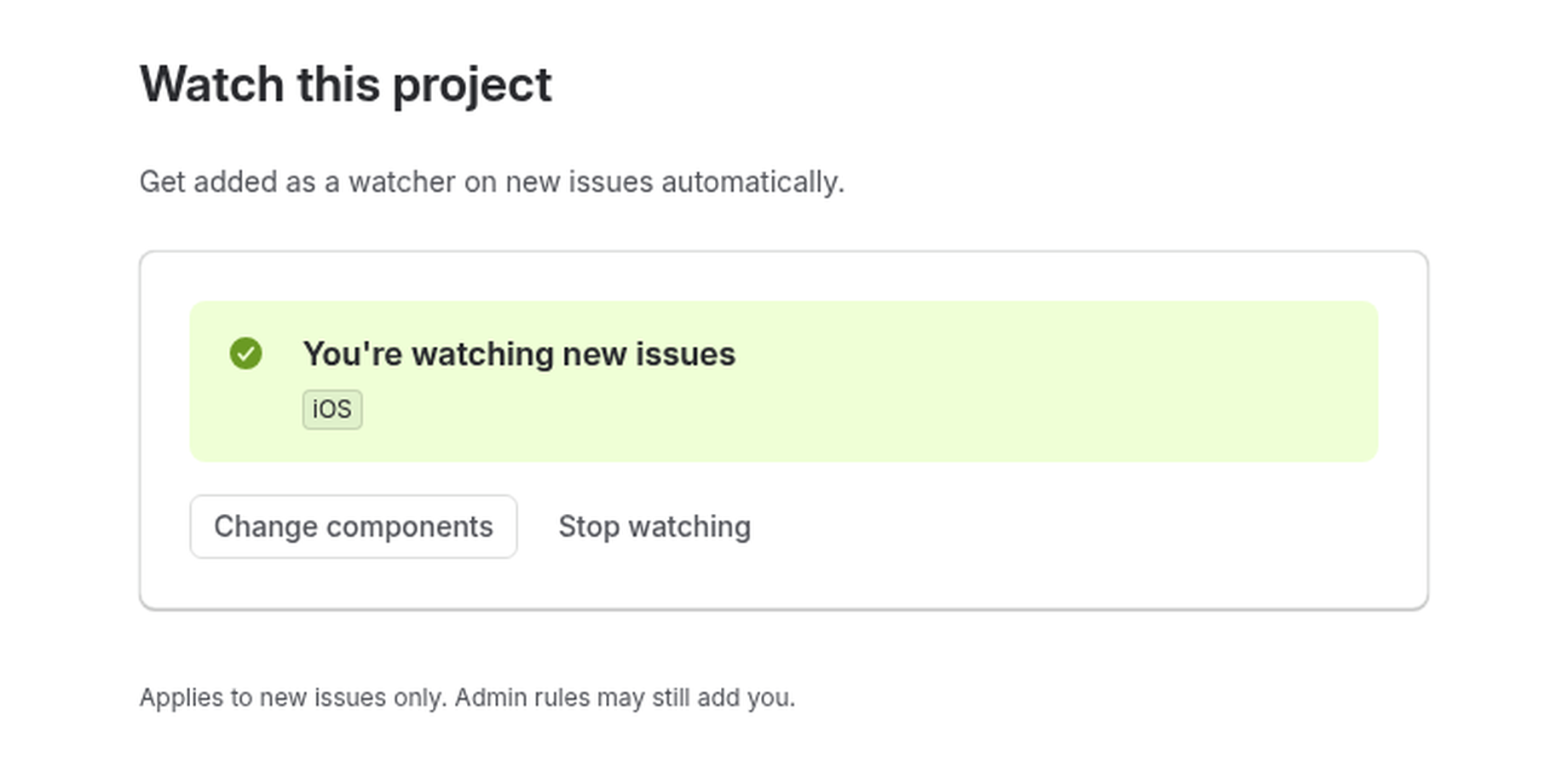
- Open your project and choose Watch this project from its app navigation.
- Choose All components or a specific component in the optional component filter.
- Select Watch new issues. Wait for Subscription saved. to confirm your choice.
- When subscribed, use Save component filter to change the scope, or Stop watching new issues to opt out.
A personal subscription covers future issues. It does not backfill older issues or send the app's optional rule addition notice. Stopping does not remove you from issues you already watch, and an admin rule can still add you.
If a saved component is no longer available, choose another component or all components. Refresh the page and check what was saved before retrying.
Create and manage admin rules
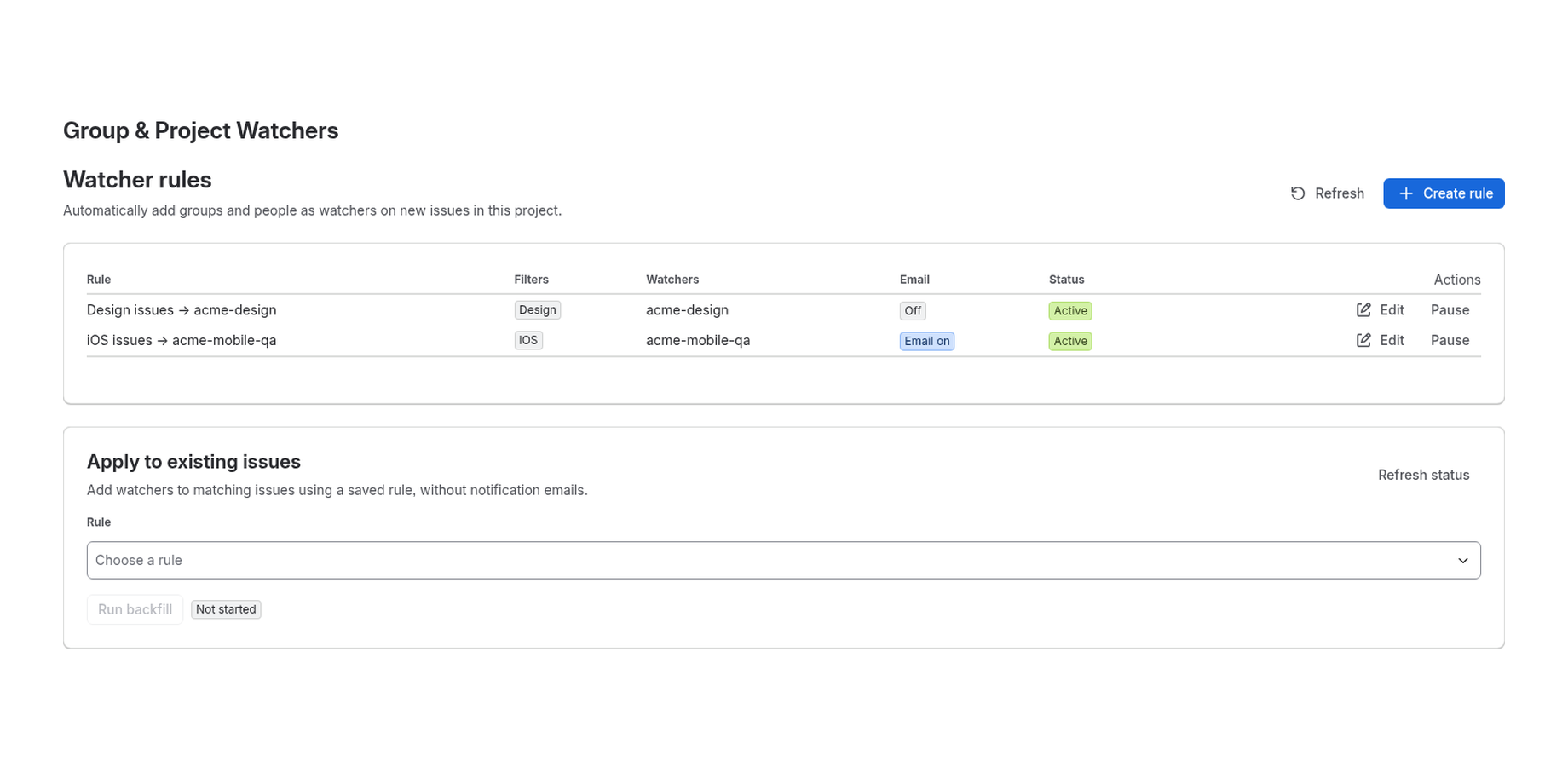
- Open Project settings → Group & Project Watchers.
- Select New rule. Start disabled while choosing recipients and filters.
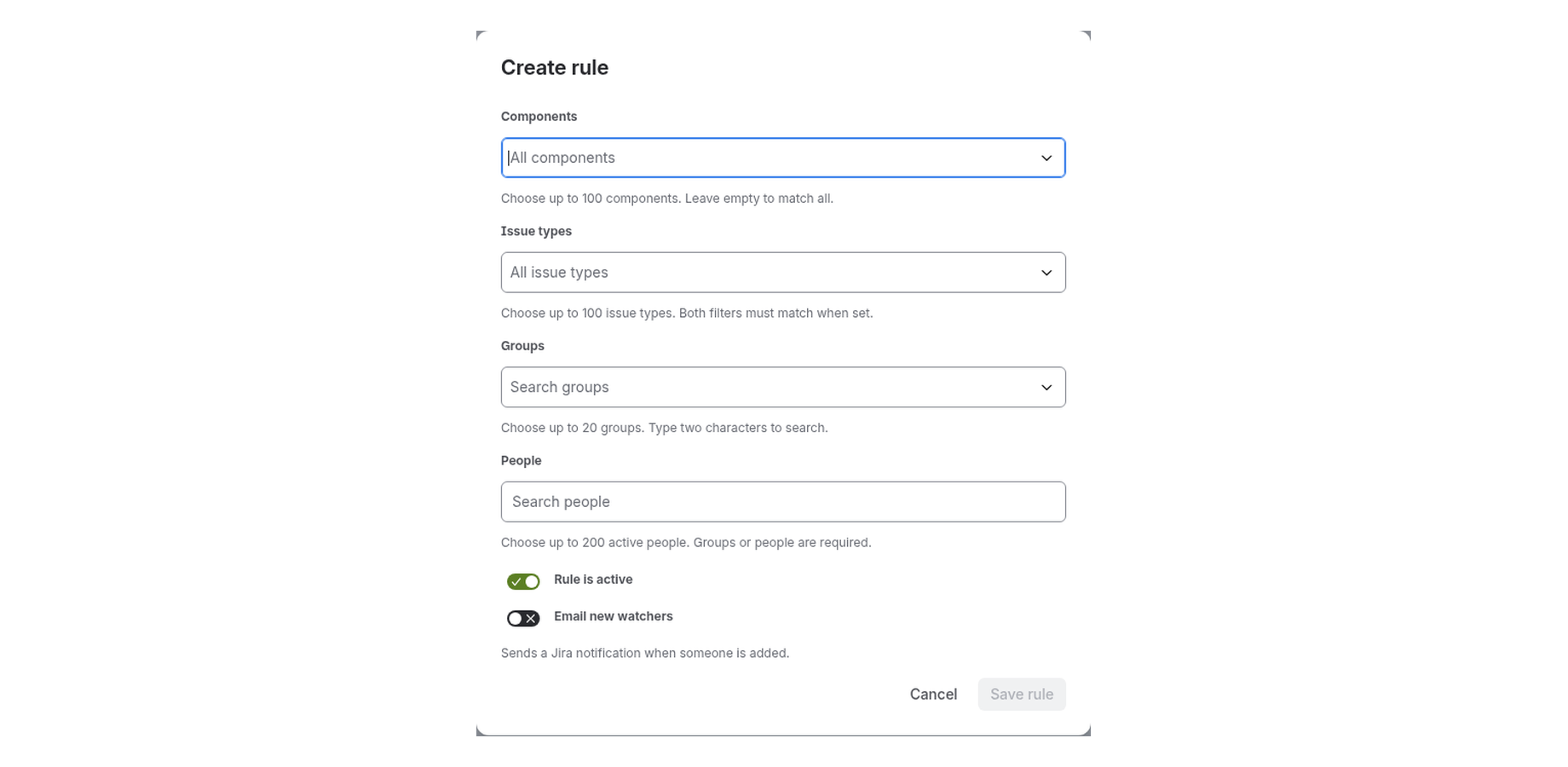
- Choose Jira groups and/or active individual users. Search results show up to 20 matches; refine the search to find the intended recipient.
- Optionally select components and issue types. No selections means all components or all issue types. When both filters are set, both must match.
- Review the optional addition-notification setting, which is off by default. Enable automatic watcher additions when ready, then select Save rule.
- Review the saved rule to check its recipients and filters.
Each rule supports up to 20 groups, 200 direct users, and 100 selections per optional filter. A project can retain up to 100 rule records; disabled and archived rules count toward that limit.
Groups expand to individual member accounts when processing runs. Overlapping recipients are deduplicated. This does not add a group-valued Watchers field, grant users issue access, or synchronize removal when group membership changes.
Use Edit rule to change configuration and Archive / disable to stop future processing. Archiving retains the rule record. Editing or disabling a rule does not remove existing watchers.
Optional addition notices
Each admin rule has a Notify newly added watchers by email (optional) setting, off by default. When enabled, the app asks Jira to notify eligible accounts newly added by rule processing. The fixed notice explains that a project watcher rule added them.
This is separate from Jira's ordinary notification scheme. Jira manages delivery through its notification settings. Personal subscriptions and historical backfill do not send this optional app notice. Enable it only when you intend to send notifications.
Apply a rule to existing issues
- In project settings, find Apply watcher rule to existing issues.
- Select a saved, enabled rule. Review its project, component and issue-type scope before proceeding.
- Choose Start backfill. The app applies the rule to matching issues that existed when you started the run.
- Use Refresh status to see saved progress. A running status includes work waiting to start, being processed or waiting to retry.
- For interrupted work, review the reason and use Resume saved run after resolving access or platform issues. Resume using the same administrator account that started the run.
- If the rule changed, the search cursor expired, or a different administrator must initiate processing, use Start new run after the previous run has stopped.
Backfill rechecks issue scope and access as it works. Moved, deleted, inaccessible or nonmatching issues can be skipped. Rule changes or loss of administrator access can stop the run. Jira search results can change while the scan is underway; a later safe rerun can reconcile newly eligible issues or group members.
| Saved counter | What it means |
|---|---|
| Issues processed | Issues checked so far, including skipped issues. This count grows as the run progresses. |
| Confirmed watcher additions | New watcher additions recorded by the run. People who already watch the issue do not increase this count. |
| Already-watching checks | Checks that found a person already watching an issue. A person may be checked on multiple issues or retries. |
| Uncertain additions | Additions the app could not confirm after an interruption or access change. These are counted separately from confirmed additions. |
Backfill sends no app addition-notification emails and has no undo or watcher-removal operation. Re-running skips watchers already present. Do not start another run without checking saved status.
When something needs attention
| What you see | What to check |
|---|---|
| Active license required | Ask the site admin to verify the installed app license. Configuration is preserved while changes and background processing are paused. |
| Permission or access error | Verify project browse/admin permissions and the user's current access. Changing a watcher does not bypass issue restrictions. |
| A save cannot be confirmed | Refresh the saved rule or subscription before retrying. The change may already be saved, so check its current state first. |
| A person is missing | Check rule filters, enabled state, group membership, account activity, issue visibility, subscription and license. |
| Processing takes longer | Jira rate limits and temporary failures can defer queued work. Read saved backfill status before starting again. |
| Backfill stops | Review the saved reason. Restore initiating-admin access before resuming; changed rules or invalid search cursors need a new run. |
| A watcher receives no email | Check whether the optional rule notice was enabled and review Jira delivery settings. Jira manages delivery separately from the watcher list. |
Data, privacy and support
The app stores identifiers, configuration, processing state and relevant user-linked preferences in Forge. It does not copy issue summaries, descriptions or comments into application records. Disabled preferences and some processing records are retained; disabling is not erasure.
Read the privacy policy and security statement to learn how your data is used and protected. Visit the support page to send an app, security or privacy request. Never send passwords, tokens or customer issue content.